Microtubule tracing
Tracing microtubules with easymode and copick-utils
Citation
easymode's models are described in So-Last et al. (2026), Easymode: general pretrained networks for cellular cryo-ET enable flexible approaches to subtomogram averaging, bioRxiv. If you use these segmentations in your research, please cite it.
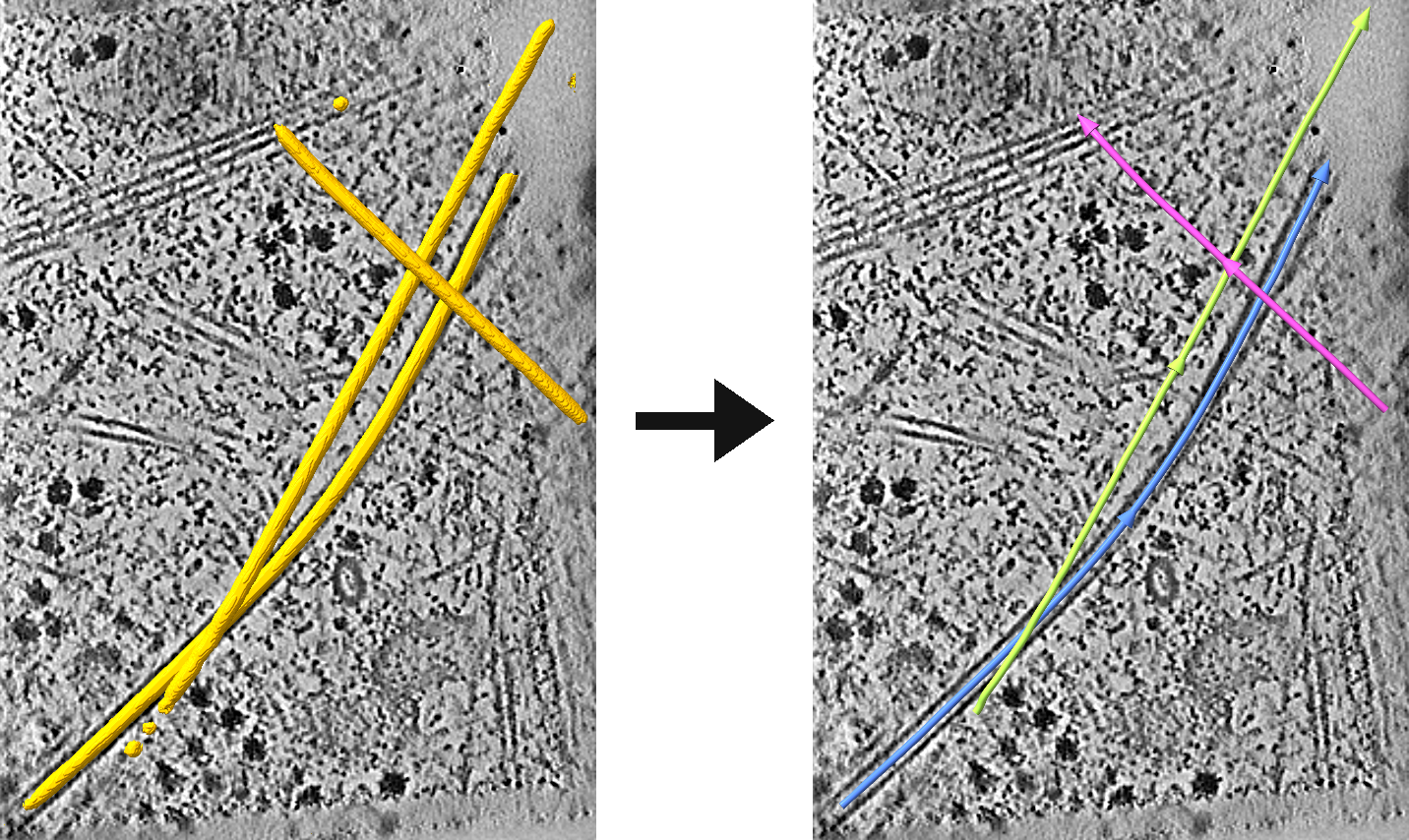
A segmentation tells you which voxels belong to microtubules, but most downstream work needs to know which microtubule each voxel belongs to and where its axis runs: subtomogram averaging of filaments, measuring lengths and curvature, or counting filaments per cell. In copick, that information lives in a Filaments entry: one ordered, editable centreline per filament, each with its own ID.
In this tutorial we segment microtubules with easymode through the
copick-easymode plugin, trace them into filaments with copick convert seg2fil from copick-utils, sample
picks along each filament for subtomogram averaging, and export them to RELION with the filament columns filled in.
We use the in-situ fibroblast tomograms of CZ cryoET Data Portal
dataset 10521 (58 tomograms at 10.005 Å, right at
easymode's 10 Å working resolution).
What you get
microtubule:easymode/1@10.005: easymode's binary microtubule segmentation.microtubule:seg2fil/1: the traced filaments, one per microtubule, numbered by length.microtubule:seg2fil/1@10.005?instance=true: an instance segmentation of the traced microtubules, whose voxel values are the filament IDs.microtubule:fil2picks/1: picks every 82 Å along each filament, oriented along it and grouped by filament ID.- A RELION STAR file with
rlnHelicalTubeIDand the other filament columns.
Step 0: Prerequisites
You need copick ≥ 1.28 (filament objects and the Filaments entity), copick-utils ≥ 1.10 (the tracing commands) and
copick-easymode. easymode itself is installed from GitHub with --no-deps; see the
easymode tutorial for why.
pip install "copick[all]>=1.28" "copick-utils>=1.10"
pip install git+https://github.com/copick/copick-easymode.git
pip install --no-deps git+https://github.com/mgflast/easymode.git
Bring a GPU for Step 2
easymode downloads its pretrained networks on first use and runs a tiled 3D U-Net with test-time augmentation, so a CUDA GPU is strongly recommended for segmentation. Tracing (Step 3) and everything after it run on a CPU in seconds per tomogram.
To look at the results, install ChimeraX-copick (toolshed install copick in ChimeraX) or
napari-copick.
Step 1: Set up the project
Create a copick project backed by the Data Portal tomograms, storing new annotations in a local overlay directory:
copick config dataportal \
  --dataset-id 10521 \
  --overlay /home/bob/copick_microtubules/ \
  --output config.json
Next, declare microtubule as a filament object. A filament object is a particle object with a filament
specification: its radius is the tube radius, and --polar records that microtubules have a direction (a plus and
a minus end). Tracing uses the radius to tell real microtubules from thin segmentation noise and to fill a hollow
label, so set it to the microtubule's outer radius, about 120 Å:
copick add object -c config.json \
  --name microtubule \
  --object-type filament \
  --radius 120 \
  --polar \
  --label 3 \
  --color "255,190,0,255"
Declare the object before running easymode
copick inference easymode adds any feature it segments to the config as a segmentation object unless the
object already exists (its --add-objects option, on by default). Declaring microtubule first keeps it a
filament object. You can also turn an existing object into a filament object in the Edit Object Types
dialog of ChimeraX-copick or napari-copick, or with
copick add object ... --object-type filament --exist-ok.
Step 2: Segment microtubules with easymode
Run easymode's microtubule network on the denoised portal tomograms. Start with a single run while you check the
result, then drop --run to segment the whole dataset:
copick inference easymode \
  --config config.json \
  -m microtubule \
  -t wbp-denoised-isonet2-ctfdeconv@10.005 \
  --run 35962 \
  --user-id easymode \
  --session-id 1 \
  --tta 4 \
  --no-add-objects
This writes microtubule:easymode/1@10.005, a binary mask aligned to the input tomogram. The mask outlines each
microtubule well, but it does not separate them: crossing microtubules merge into one connected region, and small
specks of noise sit next to them.
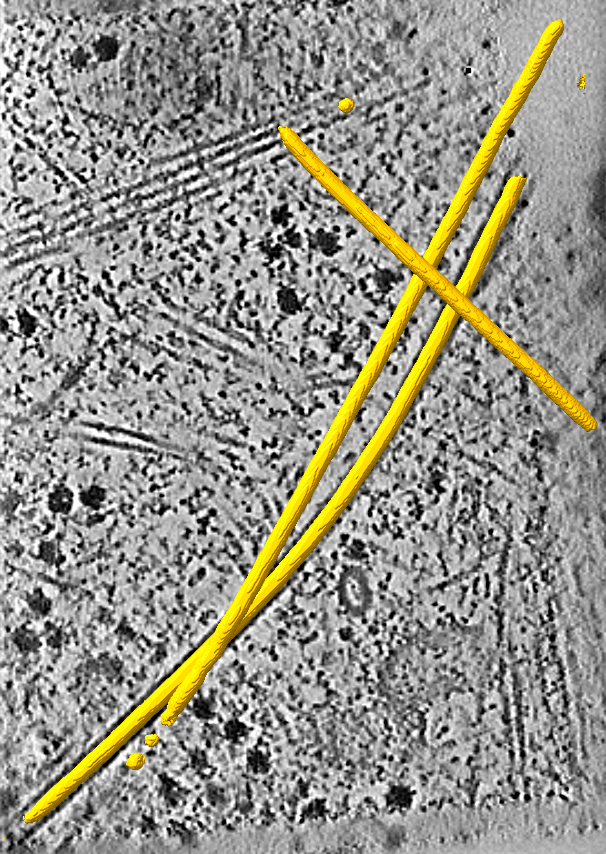
microtubule segmentation over a slice of
run 35962. Two microtubules cross near the
top, and a third runs alongside one of them.Step 3: Trace the microtubules
copick convert seg2fil turns the mask into filaments:
copick convert seg2fil -c config.json \
  -i "microtubule:easymode/1@10.005" \
  -o "microtubule:seg2fil/1" \
  --instances "microtubule:seg2fil/1@10.005" \
  --min-length 1000
For each run, this writes the filament set microtubule:seg2fil/1 and, through --instances, an instance
segmentation of the traced microtubules whose voxel values are the filament IDs. --min-length 1000 rejects pieces
shorter than 100 nm (lengths are in Å by default). Filaments are numbered 1, 2, … by length, longest first. Each is
stored as an editable Catmull-Rom curve through its fitted spline, within half a voxel of the fit.
How tracing works
Each connected component of the mask is skeletonized and split into branches between ends and junctions. Before
that, holes up to the object's radius are filled slice by slice (--fill-lumen), so a microtubule whose wall
alone is labelled still traces as one filament. Side branches shorter than one label diameter are pruned
(--prune-length), and at each junction the branches that continue most nearly straight (within --max-bend,
45° by default) are joined, so two crossing microtubules stay two filaments. Free ends are extended to the edge of
the segmentation, since thinning shortens each end by about one radius. Finally, filaments that are shorter than
--min-length, shorter than --min-aspect label diameters (blobs) or thinner than --min-radius (slivers of
noise, a third of the object's radius by default) are rejected, and a smoothing B-spline is fitted to the rest and stored as a Catmull-Rom curve through it.
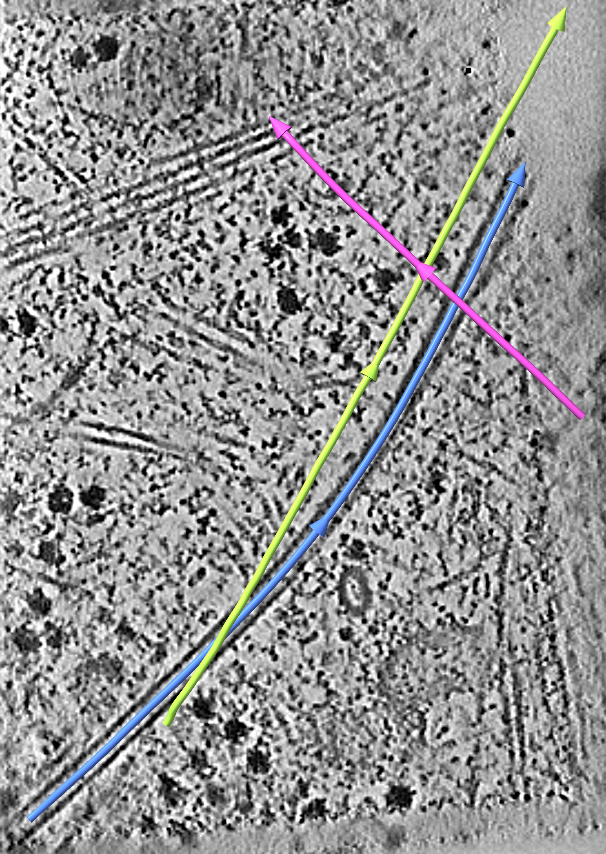
microtubule:seg2fil/1, coloured by ID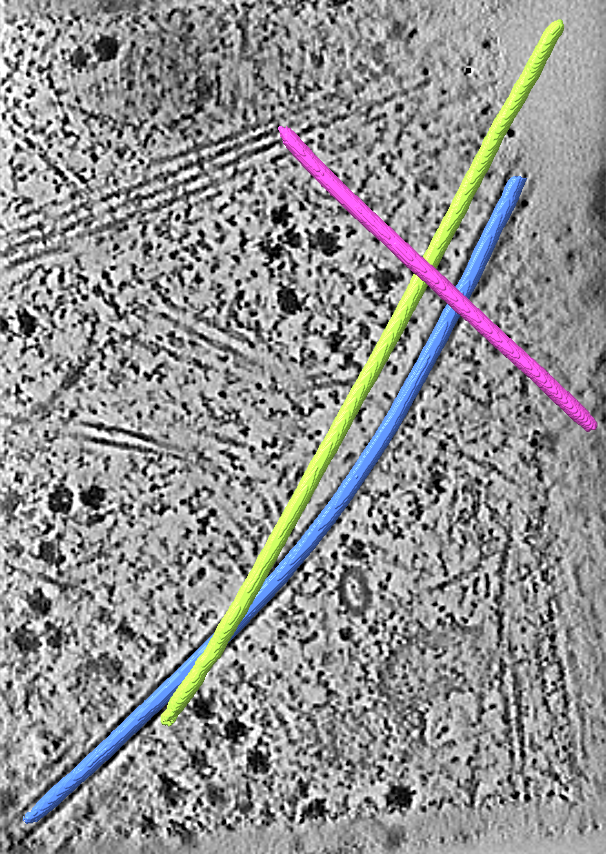
microtubule:seg2fil/1@10.005?instance=trueThe crossing near the top of run 35962 is resolved into two filaments, and the microtubule running alongside keeps
its own ID along its whole length. Run without -r, the same command traces all 58 tomograms of the dataset in a few
minutes on a laptop: 83 microtubules with a total length of 33 µm, after rejecting 786 short pieces.
Filament directions are a first guess
seg2fil cannot tell a microtubule's plus end from its minus end. It orders each filament's points from one end
to the other, and the arrowheads (and the orientation of the picks sampled in Step 5) follow that order, so the
direction is a first guess and is likely wrong for many filaments (on average half of them). The filaments are
stored with polarity_known set to false, and the STAR export in Step 6 marks their direction as unknown
(rlnAnglePsiFlipRatio 0.5), so that RELION can determine it during refinement. Where you know a filament's
polarity, reverse it in ChimeraX or
napari.
Useful options
--min-lengthhas no default: set it to the shortest microtubule you want to keep.--min-radius,--fill-lumen,--prune-lengthand--junction-mergedefault to values derived from the object's radius or the label's own thickness.copick process seg-stats --skeletonreports each component's skeleton length and label radius, which helps to choose them for a new dataset.--length-unit voxelswitches all lengths to voxels.--curve bsplinestores the exact B-spline fit instead of a Catmull-Rom curve through it. Editors can move a B-spline's control points but not add or remove them until it is converted.- An instance segmentation can be traced too (append
?instance=trueto-i); each instance is traced on its own and keeps its ID. Use this to re-trace a segmentation you have corrected by hand.
See the seg2fil reference for all options.
Step 4: Inspect and curate the filaments
Open the project in ChimeraX-copick or napari-copick to check the traces against the tomogram. Filaments appear in their own Filaments tab (ChimeraX) or tree node (napari), drawn as tubes with arrowheads that show each filament's direction. Both tools let you fix what the tracer got wrong: join pieces of one microtubule that the segmentation broke apart, cut a filament that wrongly continues into another one, reverse a filament so that it points towards the plus end, or trace microtubules the network missed:
The traced filaments are Catmull-Rom curves, so you can add, move and remove their control points right away, just as
for a filament traced by hand. Save the curated set under a new session, for example microtubule:bob/curated, so
the automatic result stays untouched.
Step 5: Sample picks along the filaments
For subtomogram averaging, sample picks at a regular spacing along each filament. 82 Å is one αβ-tubulin dimer:
copick convert fil2picks -c config.json \
  -i "microtubule:seg2fil/1" \
  -o "microtubule:fil2picks/1" \
  --spacing 82
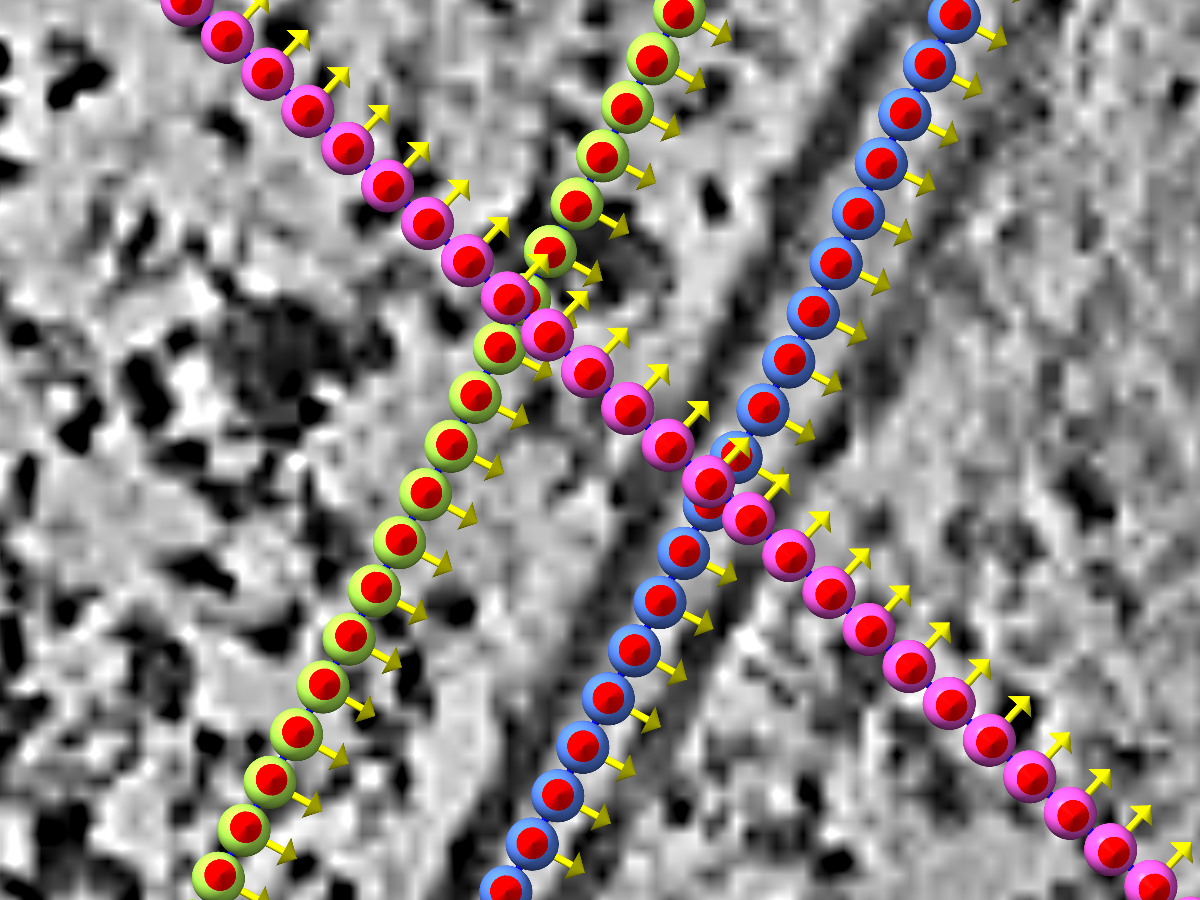
Each pick carries its filament's ID as instance_id, picks are ordered along the filament, and each pick's +Z axis
points along it. Sampling at another spacing does not need a new trace. On dataset 10521 this gives 4,109 picks.
Other outputs
copick convert fil2seg paints a tube around each filament into an instance segmentation, for example to turn
hand-traced or curated filaments into training labels for a segmentation network.
Step 6: Export to RELION
Because microtubule is declared a filament object, copick export picks adds RELION's filament columns to STAR
files: rlnHelicalTubeID (the filament ID), rlnHelicalTrackLengthAngst, and the tilt and psi priors that keep
each particle's orientation along its filament.
copick export picks -c config.json \
  --picks-uri "microtubule:fil2picks/1" \
  --output-format star \
  --voxel-size 10.005 \
  --output-file microtubules.star
Use --filament-columns off to leave them out, or on to add them for any object.
Full pipeline (copy/paste)
# 1. install
pip install "copick[all]>=1.28" "copick-utils>=1.10"
pip install git+https://github.com/copick/copick-easymode.git
pip install --no-deps git+https://github.com/mgflast/easymode.git

# 2. create a project from Data Portal dataset 10521 and declare microtubules a filament object
copick config dataportal \
  --dataset-id 10521 \
  --overlay /home/bob/copick_microtubules/ \
  --output config.json
copick add object -c config.json \
  --name microtubule --object-type filament --radius 120 --polar \
  --label 3 --color "255,190,0,255"

# 3. segment microtubules (GPU)
copick inference easymode \
  --config config.json \
  -m microtubule \
  -t wbp-denoised-isonet2-ctfdeconv@10.005 \
  --user-id easymode --session-id 1 --tta 4 --no-add-objects

# 4. trace them into filaments (and an instance segmentation)
copick convert seg2fil -c config.json \
  -i "microtubule:easymode/1@10.005" \
  -o "microtubule:seg2fil/1" \
  --instances "microtubule:seg2fil/1@10.005" \
  --min-length 1000

# 5. sample picks every 82 Å and export them to RELION
copick convert fil2picks -c config.json \
  -i "microtubule:seg2fil/1" -o "microtubule:fil2picks/1" --spacing 82
copick export picks -c config.json \
  --picks-uri "microtubule:fil2picks/1" \
  --output-format star --voxel-size 10.005 \
  --output-file microtubules.star