Napari filaments
Tracing filaments in napari
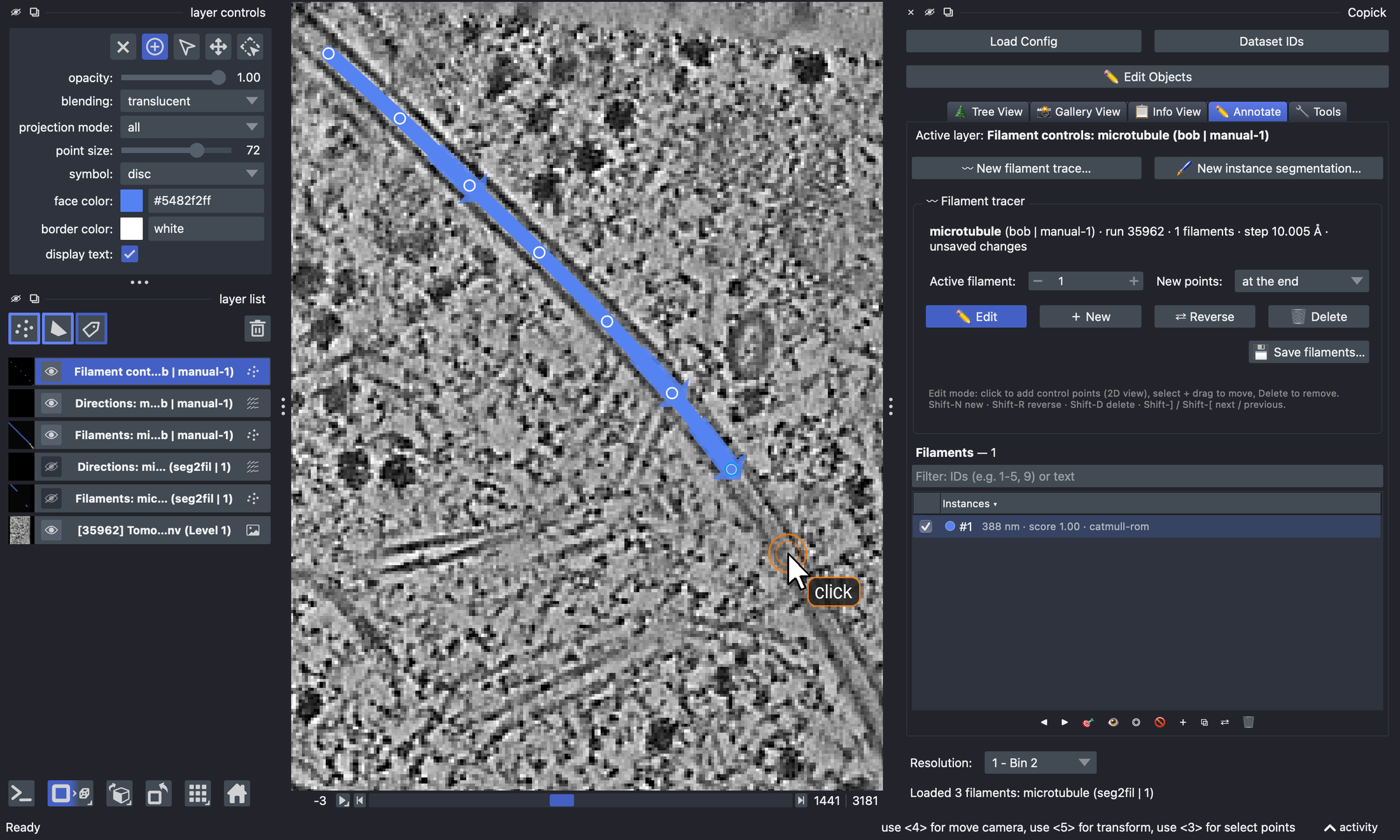
Filaments such as microtubules or actin are annotated by their centreline: an ordered curve through the middle of the
filament, one per filament, each with its own ID. napari-copick traces them on the 2D view of a tomogram: you click
control points along a filament and copick draws a smooth curve through them. The same panel joins, reverses and
deletes filaments, so it is also the place to curate automatic traces, for example those of
copick convert seg2fil.
This tutorial uses the microtubule project from Tracing microtubules with easymode and copick-utils, but any copick project with a tomogram works.
Step 0: Prerequisites
Filament tracing needs napari-copick 1.10 or later, which brings copick ≥ 1.28:
Start napari with the copick plugin and your project:
napari 0.9: set a slice thickness
Since napari 0.9, points (and therefore filaments and picks) are drawn only within the thickness of the current
slice, and the default thickness is zero, so traces may look like isolated dots. napari-copick 1.10.0 does not set
it yet: right-click the slice slider below the view and set a thickness of about the filament diameter (for
microtubules, 120 Å), or run viewer.dims.thickness = (120, 0, 0) in napari's console (>_, bottom left).
Step 1: Declare a filament object
Only objects declared as filaments can be traced. A filament object is a particle object with a filament specification: its radius is the tube radius, and its polarity says whether the filament has a direction. If your project does not have one yet, click ✏️ Edit Objects in the copick panel, select the object (or add a new one), tick Is Particle and Is Filament, and set the radius and polarity under Filament Properties. The dialog is the same as in ChimeraX-copick. From the command line:
Step 2: Open a tomogram and existing filaments
In the 🌲 Tree View, expand a run and its voxel spacing and click a tomogram to open it. Filament sets are listed
under Filaments › object › user | session; click one to show it. Right-click a filament set and choose
✏️ Trace / edit filaments to open it for editing in the ✏️ Annotate tab:
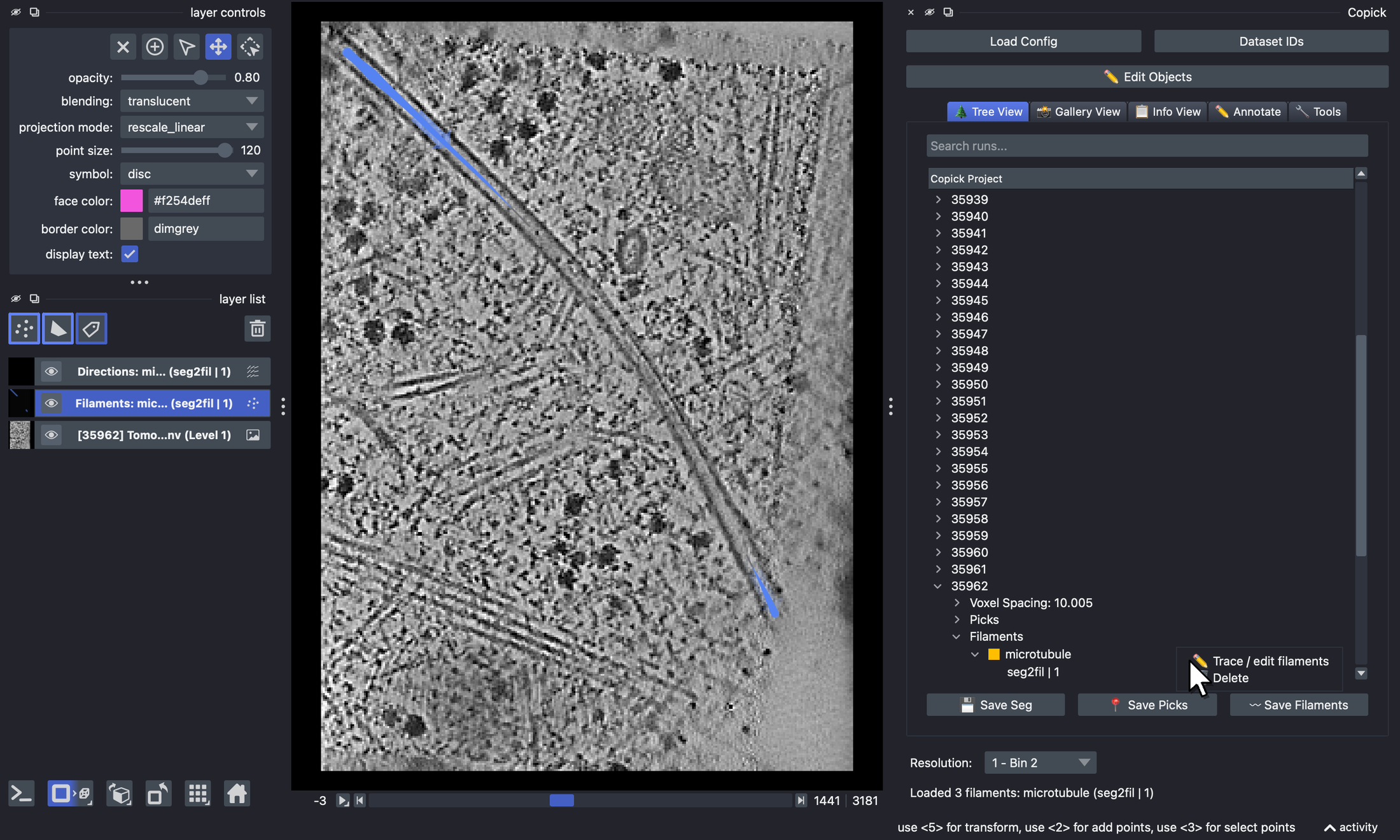
seg2fil traces of run 35962 for editing.Step 3: Start a new trace
To trace new filaments, switch to the ✏️ Annotate tab and click 〰 New filament trace…. Choose the tomogram (its run and voxel spacing are used for the new set), a filament object, a user and a session:
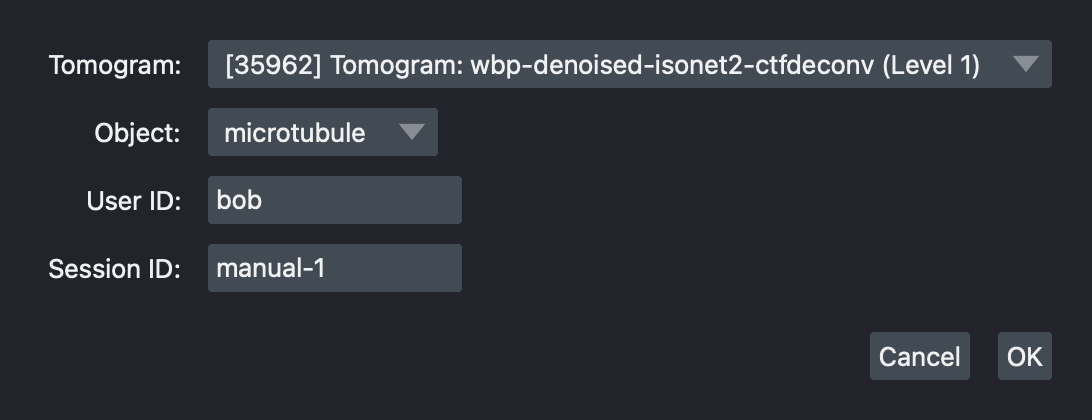
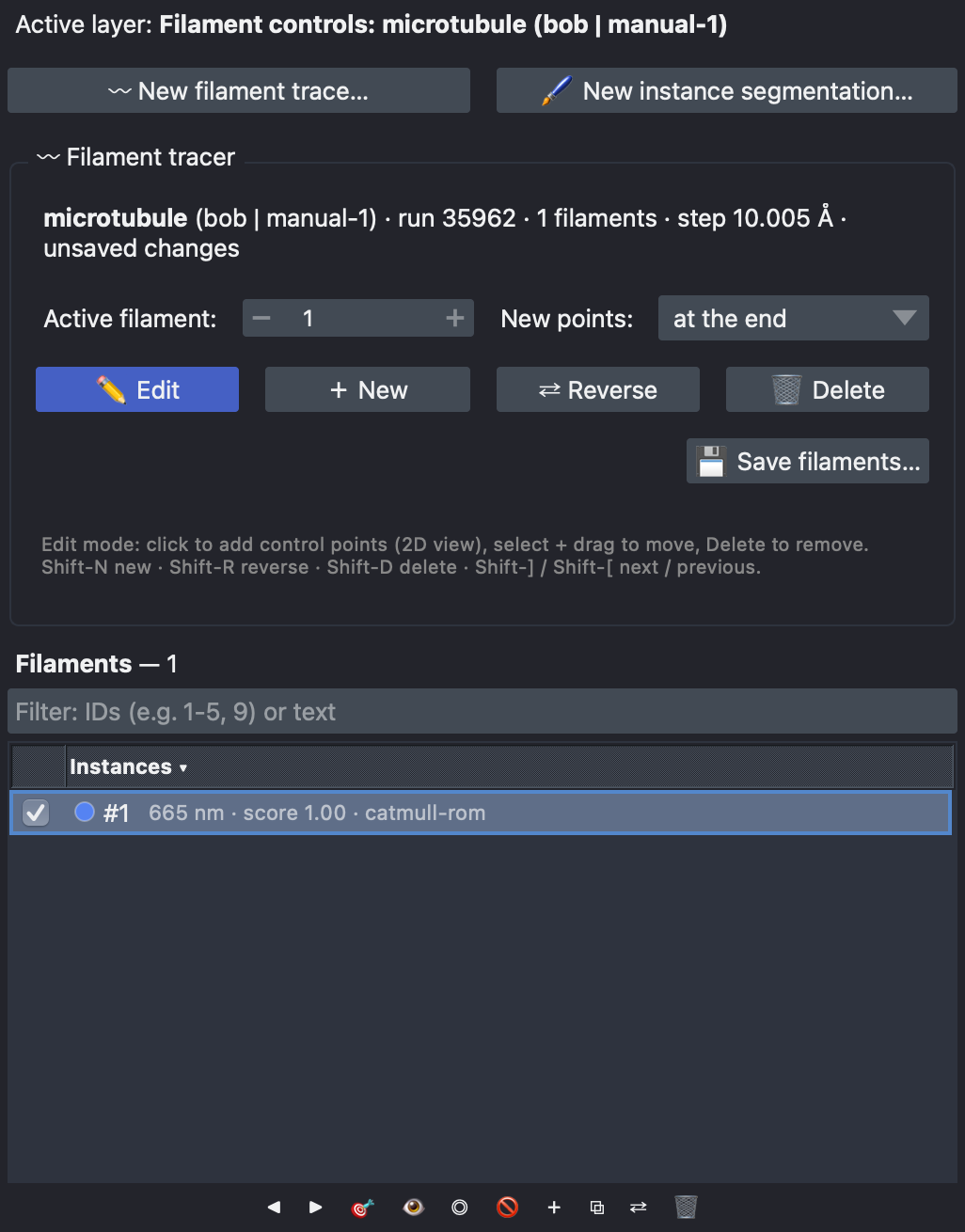
microtubule:bob/manual-1.The Annotate tab now shows the 〰 Filament tracer panel, and three layers are added for the set: the centreline (Filaments: …), its direction arrows (Directions: …) and the editable control points (Filament controls: …).
Step 4: Trace
With ✏️ Edit on, the control-point layer is active in napari's add points mode. Click along a filament in the 2D view to place control points; the centreline is a smooth (Catmull-Rom) curve through them. Move through the tomogram with the slider below the view to follow a filament that leaves the slice.
- Move a point: switch the layer to select mode, then drag the point.
- Remove a point: select it and press Del or Backspace.
- Where new points go: the New points menu adds them at the end (default), at the start, or between nearest, which inserts a point into the closest segment, for example to refine a curve.
- Start the next filament: + New, or Shift+N while the control-point layer is active.
The arrows on the centreline show each filament's direction, from its first to its last point. For a polar filament such as a microtubule, use ⇄ Reverse (Shift+R) if it points the wrong way. 🗑 Delete (Shift+D) removes the active filament, and Shift+] / Shift+[ step to the next or previous one.
Step 5: Browse and join filaments
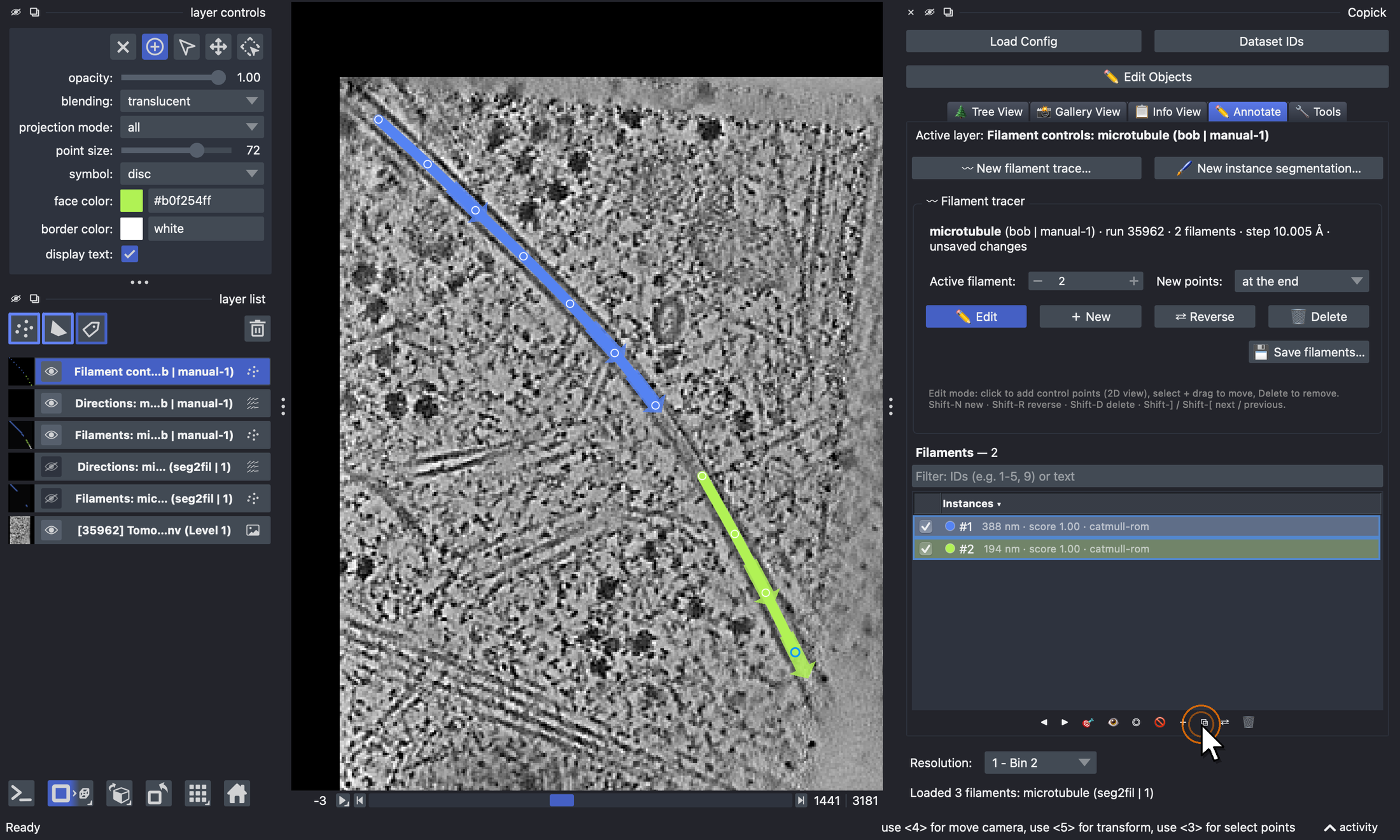
The list below the tracer shows the filaments of the set with their length and score. Click the list header to sort
by ID, length or score; the filter box takes IDs (1-5, 9) or text. ◀ ▶ step through the filaments, 🎯 (or a
double-click) moves the view to one, and the checkboxes show or hide them.
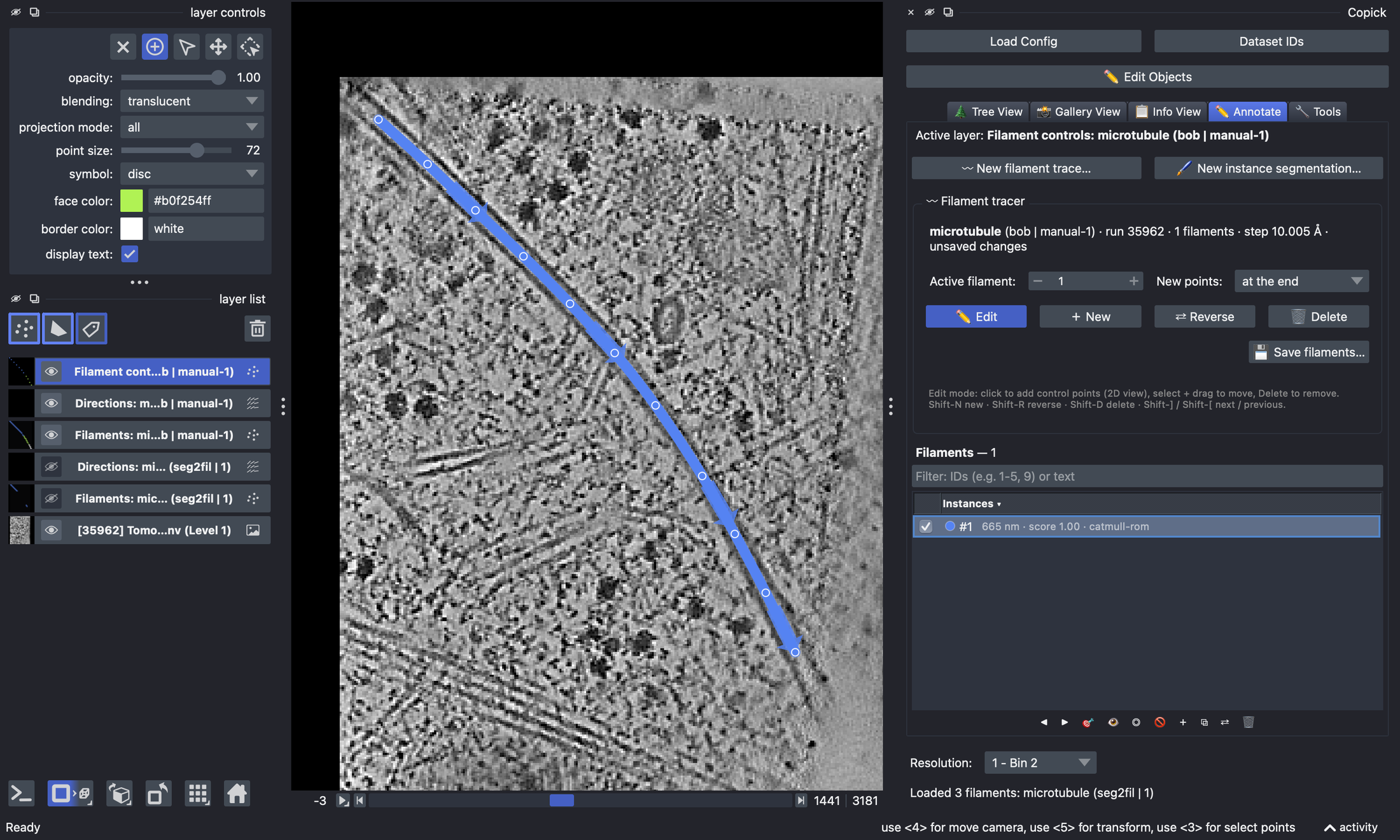
Join connects filaments end to end, for example two pieces of one microtubule that you traced separately or that a segmentation broke apart. Select the filaments in the list (Ctrl / Shift + click) and click ⧉. Copick connects the nearest ends, reversing a piece if needed, and the joined filament keeps the ID and direction of the current one.
Cutting and undo
Cutting a filament in two and undoing filament edits are currently available in ChimeraX-copick only. In napari, remove control points instead and start a new filament for the second piece.
Step 6: Save
Click 💾 Save filaments… in the tracer panel (or 〰 Save Filaments in the Tree View tab). Besides the user and session, the dialog records whether the point order follows the filament's polarity, and can also write picks sampled along the filaments at a fixed spacing, oriented along each filament and carrying its ID, for example every 82 Å (one tubulin dimer) for subtomogram averaging:
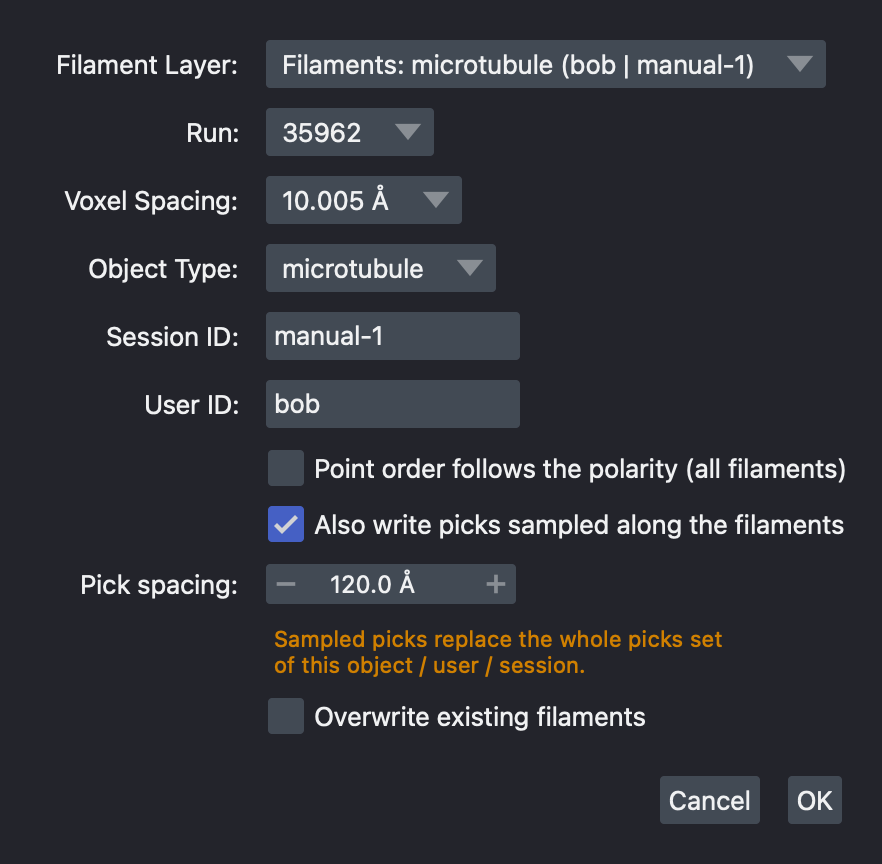
Session 0 is reserved for tool output, so traces from tools are saved under a new session. Overwrite existing
filaments is ticked for sets opened from an editable file; untick it to keep an existing set of the same name.
Curating automatic traces
Filaments from copick convert seg2fil are Catmull-Rom curves, so their control points can be added, moved and
removed like those of a filament traced by hand. Save the curated set under a new session so the automatic traces stay
as they are.
Filaments stored as B-splines (seg2fil --curve bspline, or traces from copick-utils 1.9) can be moved but not edited
point by point: click Convert to Catmull-Rom in the tracer panel first.